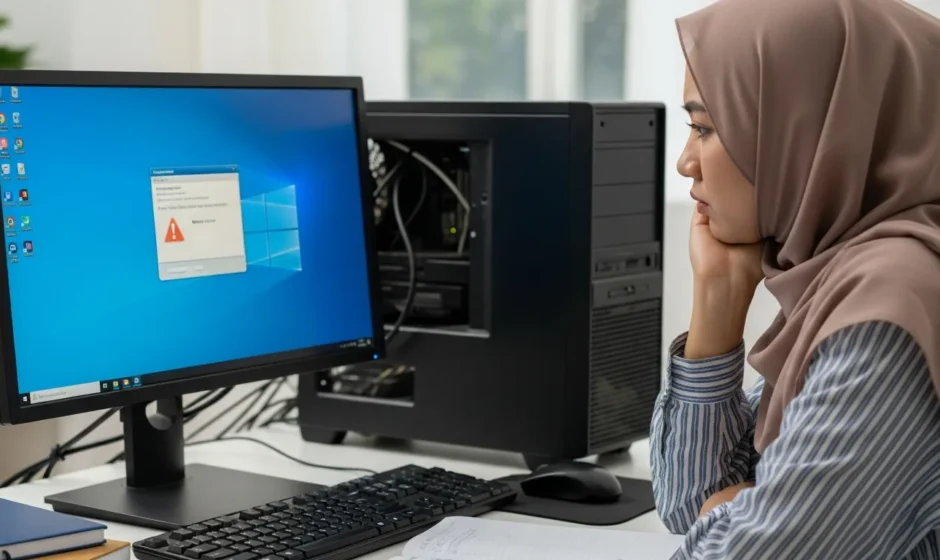

There is nothing more frustrating than being in the middle of a critical work project or an intense gaming session only to have your screen freeze or turn blue. If you have ever shouted, “Why does my computer keep crashing?” at your monitor, you are certainly not alone. In 2026, even with the most advanced operating systems, stability issues remain a common headache for users across the globe.
Understanding why your pc crashes randomly is the first step toward a permanent solution. Whether it is a hardware conflict, a software bug, or a simple overheating issue, identifying the root cause allows you to apply the right fix without wasting time on unnecessary repairs.
The Most Common Reasons for Computer Crashes
When computer crashes occur, they usually stem from a few primary culprits. Identifying which one is affecting your system requires a bit of detective work. Often, the issue is related to how the hardware communicates with the software.
- Overheating: If your fans are spinning loudly before a shutdown, heat is likely the culprit. Dust buildup or failing thermal paste can cause the CPU to shut down to prevent permanent damage.
- RAM Issues: Faulty memory sticks are a notorious cause of the Blue Screen of Death (BSOD). If a specific sector of your RAM is corrupted, your system will fail as soon as it tries to access it.
- Driver Conflicts: Outdated or corrupt drivers act as a bad bridge between your OS and your hardware.
If you have noticed that your system is increasingly sluggish, you may want to start by troubleshooting performance bottlenecks before the instability leads to a full system failure.
Why Does My Computer Keep Crashing When I Play Games?
Gaming is one of the most resource-intensive tasks you can ask of your machine. If you find yourself asking, “why does my computer keep crashing when i play games?” the answer usually lies in the Graphics Processing Unit (GPU) or the Power Supply Unit (PSU).
Modern games push hardware to its limits. If your PSU cannot provide enough consistent wattage to your GPU during a high-load moment, the entire system will lose power or restart. Furthermore, if your GPU drivers are not optimized for the specific game engine, the software will hang. This is why following stable software development practices is so vital for the applications we use daily; without them, the interaction between code and hardware becomes unpredictable.
Browser and Web App Instability
Sometimes the crash isn’t the whole computer, but rather the applications you use most. A common query among users is, “why does google chrome keep crashing my computer?” Chrome is known for its high memory usage. If you have dozens of tabs open and your RAM is already struggling, Chrome can trigger a system-wide freeze.
Similarly, social media platforms can be surprisingly heavy. If you are wondering “why does facebook keep crashing on my computer,” it is often due to hardware acceleration settings in your browser or a conflict with a specific browser extension. Disabling hardware acceleration in your browser settings often resolves these localized crashes.
Brand-Specific Issues: Why Does My HP Computer Keep Crashing?
While all PCs share similar internal components, certain manufacturers have specific software ecosystems that can cause issues. If you are asking, “why does my hp computer keep crashing,” the problem may reside in the proprietary bloatware or support assistants that come pre-installed. These background services can sometimes conflict with Windows Update, leading to a loop of instability. Updating your BIOS directly from the manufacturer’s website is often a necessary step for brand-specific stability.
How to Fix PC Crashing: A Step-by-Step Guide
Knowing how to fix pc crashing involves a methodical approach to narrowing down the variables. Follow these steps to stabilize your system:
1. Check for Overheating
Use a monitoring tool to check your CPU and GPU temperatures. If they exceed 80-90 degrees Celsius under load, it is time to clean your fans or re-apply thermal paste.
2. Run a Memory Diagnostic
Windows has a built-in tool called “Windows Memory Diagnostic.” Run this to check if pc crashed due to a hardware failure in your RAM modules.
3. Update Your Drivers
Focus specifically on your Chipset and GPU drivers. Use the manufacturer’s website rather than relying solely on Windows Update for these critical components.
4. Inspect the Event Viewer
To truly understand why does my pc keep crashing, you need to look at the logs. Type “Event Viewer” into your Windows search bar and look under “Windows Logs” > “System.” Look for Red “Error” or “Critical” icons at the exact time of your last crash. This will often give you an error code like Kernel-Power 41, which points toward a power supply issue.
Frequently Asked Questions
How do I know if my power supply is failing?
If your computer shuts off instantly without a blue screen, especially during gaming or video editing, your PSU is likely unable to handle the power draw.
Can a virus cause my computer to crash?
Yes, malware can consume 100% of your CPU resources or corrupt system files, leading to frequent crashes. Always run a deep scan with a reputable antivirus if you experience sudden instability.
Should I reinstall Windows to stop the crashes?
Reinstalling Windows is a “nuclear option.” It fixes software-related crashes but will not help if your RAM or Motherboard is physically failing. Try driver updates and hardware checks first.